#Day07 of 90DayOfDevOps
Hi there! I'm Anuj Tomar, an enthusiastic and aspiring DevOps engineer and Cloud engineer with a passion for integrating development and operations to create seamless, efficient, and automated workflows. I'm driven by the challenges of modern software development and am dedicated to continuous learning and improvement in the DevOps field.
What is a Package Manager in Linux?
A package manager in Linux is a tool that automates software installation, upgrading, configuration, and removal by retrieving package files, resolving dependencies, and ensuring correct installation, with common examples including APT, YUM, DNF, and Pacman.
What is a Package?
A package in Linux software management is a compressed file archive containing all necessary files for installing software, including executables, libraries, configuration files, scripts, and metadata for version, description, and dependencies, which package managers use to automate software installation and management.
Different Kinds of Package Managers.
There are several kinds of package managers in Linux, each designed to work with specific distributions or package formats. Here are some of the most common ones:
APT (Advanced Package Tool): Used primarily in Debian-based distributions like Ubuntu. It handles .deb packages and is known for its ease of use and powerful dependency resolution.
YUM (Yellowdog Updater, Modified): Used in RPM-based distributions like CentOS and older versions of Fedora. It manages .rpm packages and is known for its ability to handle complex package management tasks.
DNF (Dandified YUM): The next-generation version of YUM, used in Fedora and newer versions of Red Hat-based distributions. It offers improved performance and better dependency management.
Pacman: The package manager for Arch Linux and its derivatives. It is known for its simplicity and speed, managing .pkg.tar.zst packages.
Zypper: Used in openSUSE and SUSE Linux Enterprise. It is known for its powerful dependency resolution and support for multiple repositories.
Portage: The package management system used by Gentoo Linux. It is a source-based package manager, allowing users to compile packages from source for optimization.
Snap: A package management system developed by Canonical for installing software across various Linux distributions. It uses containerized packages called snaps.
Flatpak: A universal package management system that allows applications to run on any Linux distribution. It focuses on application isolation and security.
Nix: A purely functional package manager that is part of the NixOS project. It is known for its reproducibility and ability to manage multiple versions of packages.
Each package manager has its own strengths and is chosen based on the specific needs and preferences of the distribution and its use
Task 1:
Install Docker and Jenkins on your system from your terminal using package managers.
Answer
- First-Installing Docker
- Update the package list and install required packages:
sudo apt updatesudo apt install apt-transport-https ca-certificates curl software-properties-common
Add Docker’s official GPG key:
curl -fsSL [https://download.docker.com/linux/ubuntu/gpg](https://download.docker.com/linux/ubuntu/gpg)| sudo apt-key add -
Add the Docker APT repository:
sudo add-apt-repository "deb [arch=amd64] [https://download.docker.com/linux/ubuntu](https://download.docker.com/linux/ubuntu)$(lsb_release -cs) stable"
Update the package list again:
sudo apt update
Install Docker:
sudo apt install docker-ce
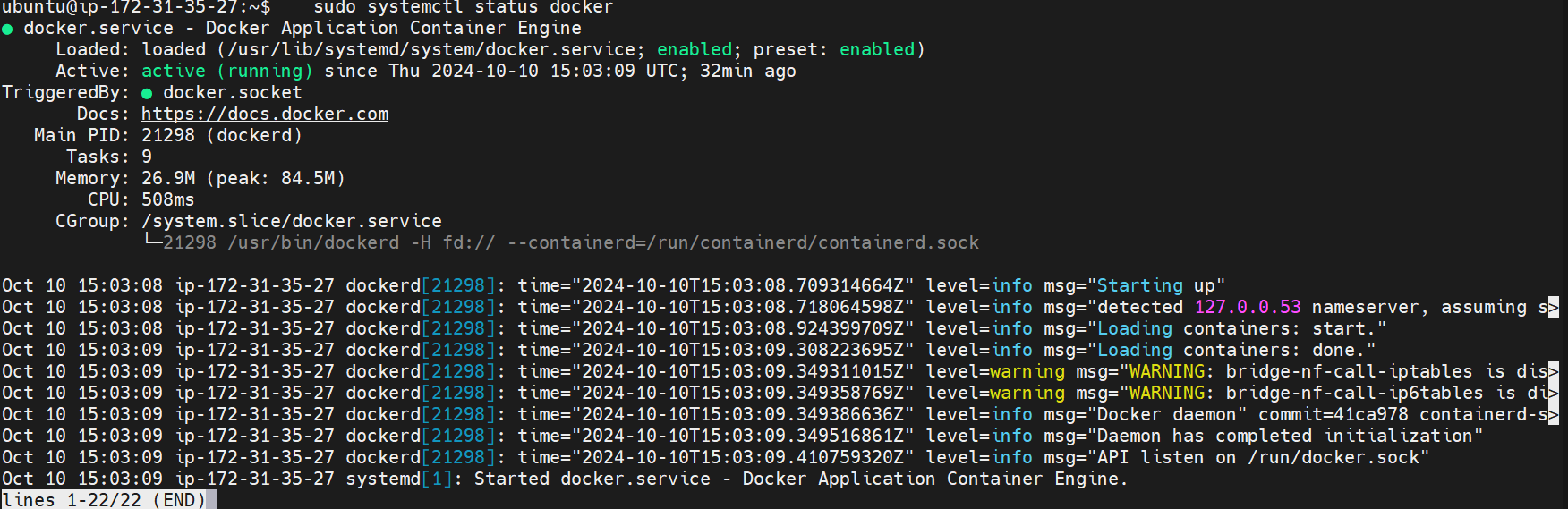
Check Docker installation:
sudo systemctl status docker
second-Installing Jenkins:
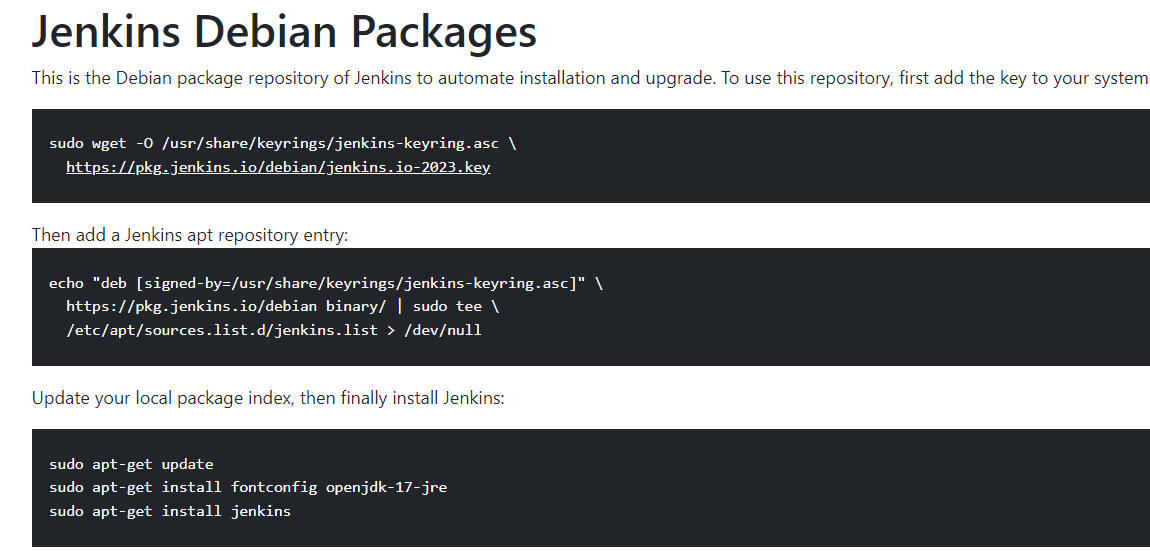
Note: First, check whether JAVA is installed or not.
java -version
if you have not installed
sudo apt install default-jre
Start Jenkins:
sudo systemctl start jenkins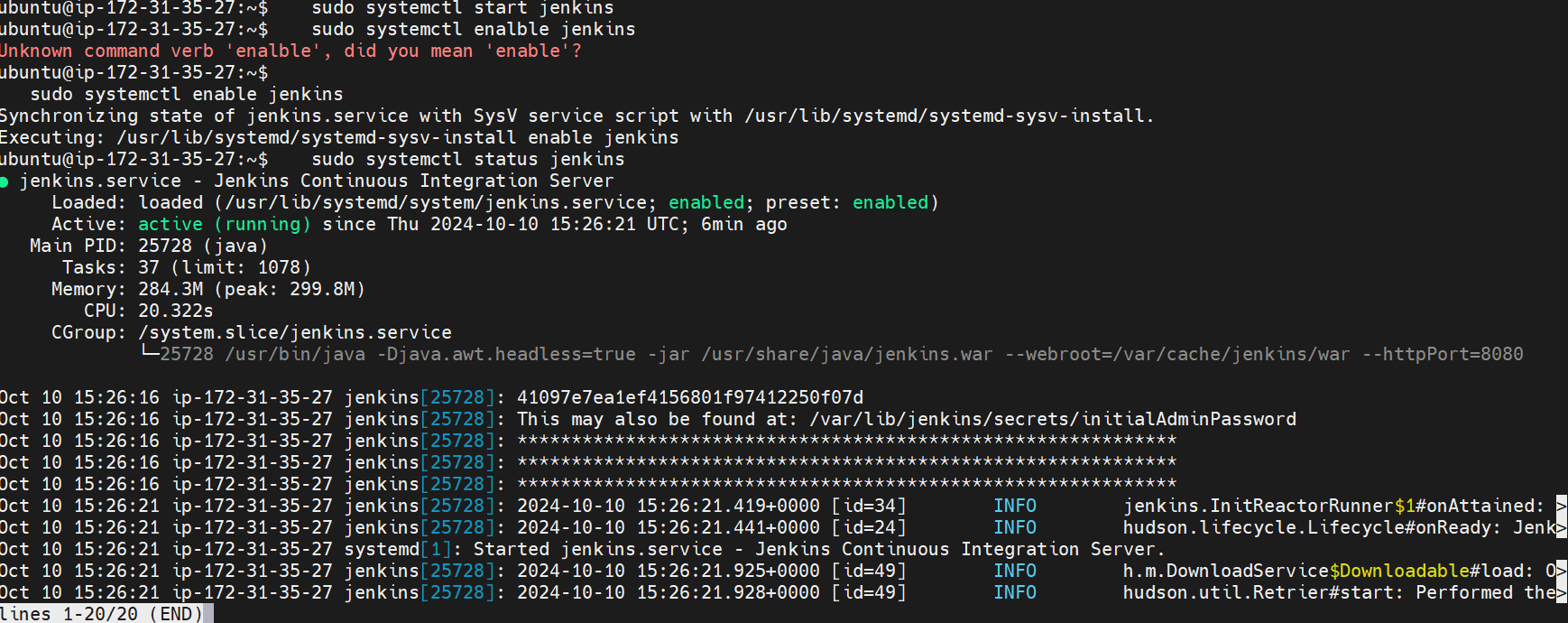
Write a small blog or article on how to install these tools using package managers on Ubuntu and CentOS.
Installing Docker and Jenkins on Ubuntu and CentOS
Installing Docker
On Ubuntu:
Begin by updating the package list and installing necessary packages to allow apt to use a repository over HTTPS.
Add Docker’s official GPG key to ensure the authenticity of the packages.
Set up the Docker APT repository to access Docker packages.
Update the package list again to include Docker packages from the newly added repository.
Install Docker Community Edition.
Verify the Docker installation by checking its status.
On CentOS:
Install required packages to manage repositories and dependencies.
Add the Docker repository to the system to access Docker packages.
Install Docker Community Edition.
Start the Docker service to begin using it.
Enable Docker to start automatically at boot time.
Installing Jenkins
On Ubuntu:
Ensure Java is installed, as Jenkins requires it to run.
Add the Jenkins repository key to verify the packages.
Add the Jenkins repository to the system to access Jenkins packages.
Update the package list and install Jenkins.
Start the Jenkins service.
Enable Jenkins to start automatically at boot time.
On CentOS:
Install Java if it is not already installed, as it is required for Jenkins.
Add the Jenkins repository to the system to access Jenkins packages.
Import the Jenkins repository key to verify the packages.
Install Jenkins.
Start the Jenkins service.
Enable Jenkins to start automatically at boot time.
By following these steps, you can successfully install Docker and Jenkins on both Ubuntu and CentOS systems using their respective package managers.
Task 2:
Check the status of the Docker service on your system (ensure you have completed the installation tasks above)
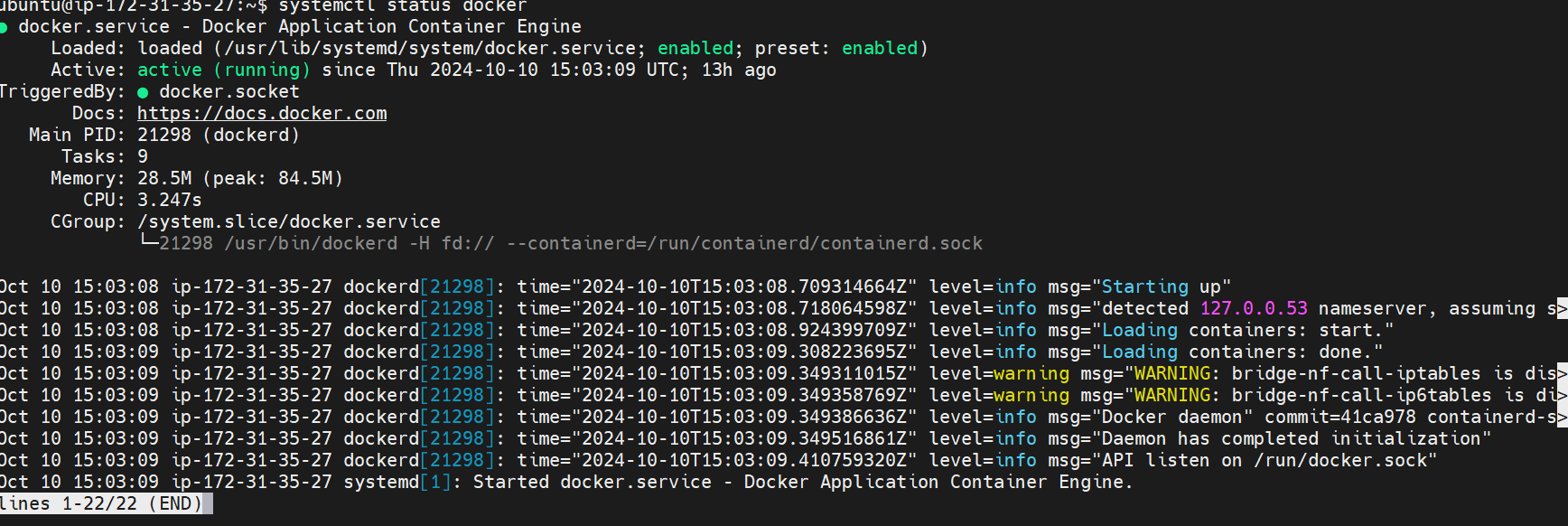
- Manage Jenkins Service:
Stop the Jenkins service and post before and after screenshots.
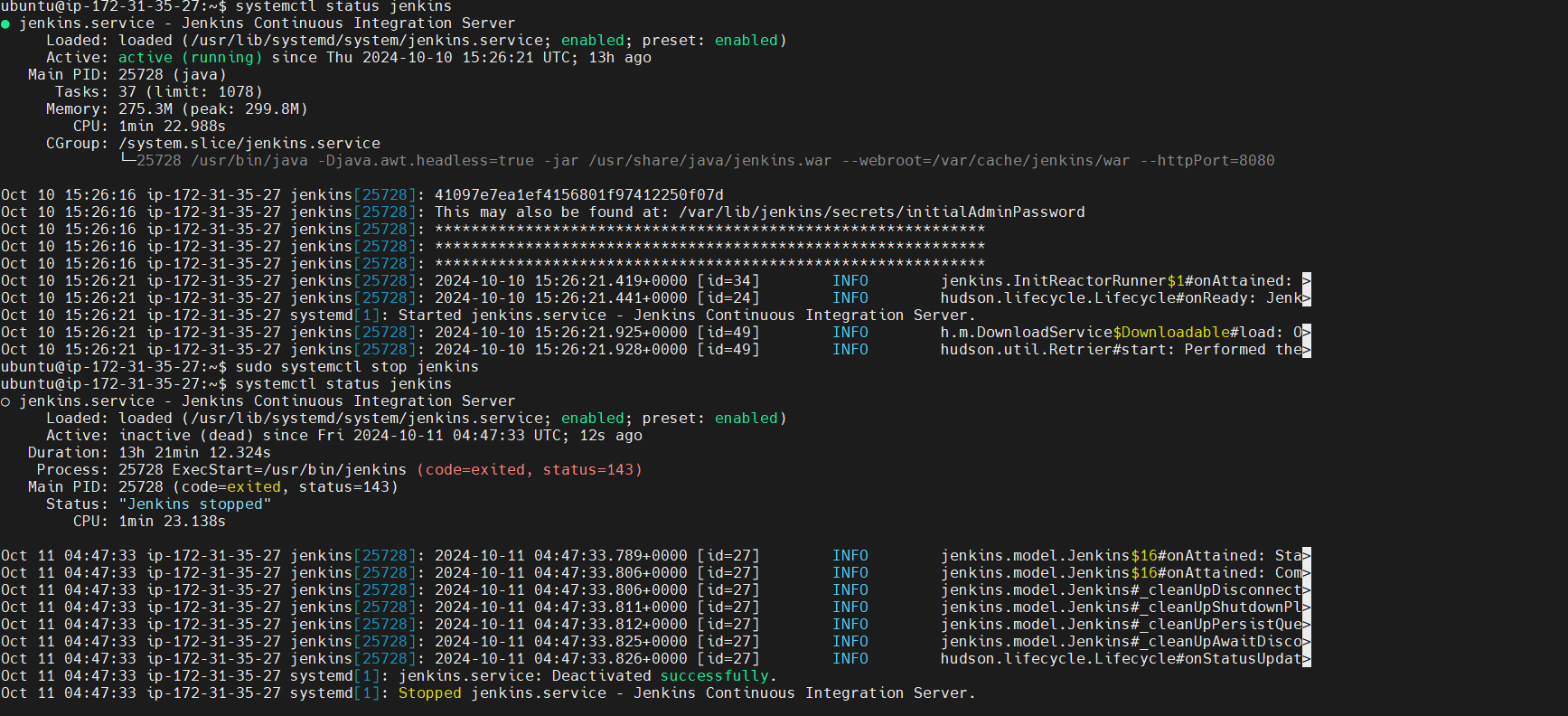
Read About Systemctl vs. Service:
In Linux, both
systemctlandserviceare used to manage services, but they are part of different init systems.systemctl:
Part of the
systemdinit system, which is the default in many modern Linux distributions like Ubuntu, Fedora, and CentOS 7 and later.Provides a unified interface to manage services, sockets, devices, and more.
Offers advanced features like parallel service startup, on-demand starting of daemons, and snapshotting of the system state.
Common commands include:
systemctl start <service>: Starts a service.systemctl stop <service>: Stops a service.systemctl restart <service>: Restarts a service.systemctl status <service>: Checks the status of a service.systemctl enable <service>: Enables a service to start at boot.systemctl disable <service>: Disables a service from starting at boot.
service:
Part of the older
SysVinitsystem, which was used in older Linux distributions.Provides a simpler interface for managing services.
Common commands include:
service <service> start: Starts a service.service <service> stop: Stops a service.service <service> restart: Restarts a service.service <service> status: Checks the status of a service.
In summary, systemctl is more feature-rich and is used in systems running systemd, while service is used in systems running SysVinit. Most modern Linux distributions have transitioned to systemd, making systemctl the more commonly used tool.
Additional Tasks
Automate Service Management:
Write a script to automate the starting and stopping of Docker and Jenkins services.
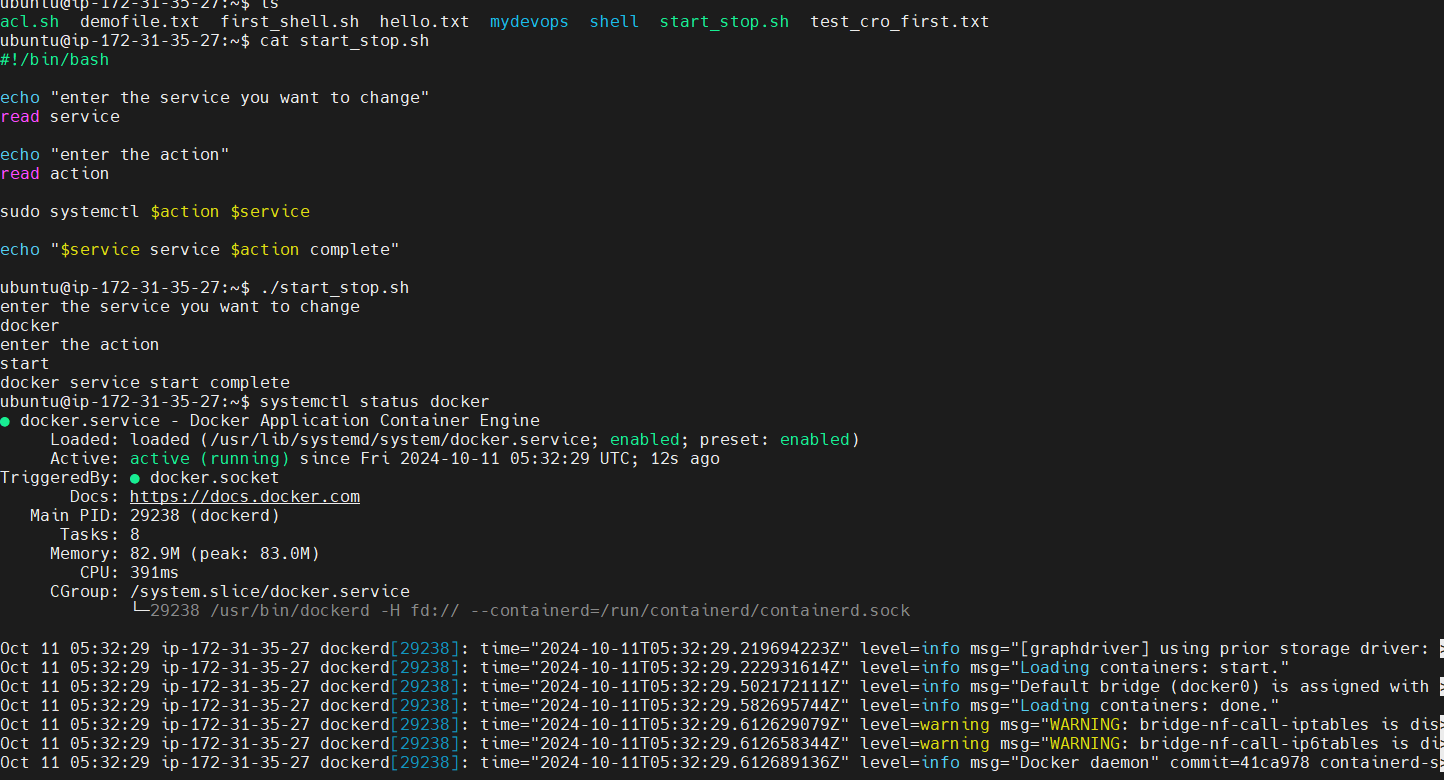
Enable and Disable Services:
- Use systemctl to enable Docker to start on boot and disable Jenkins from starting on boot.
Answer
Enable Docker to start on boot:
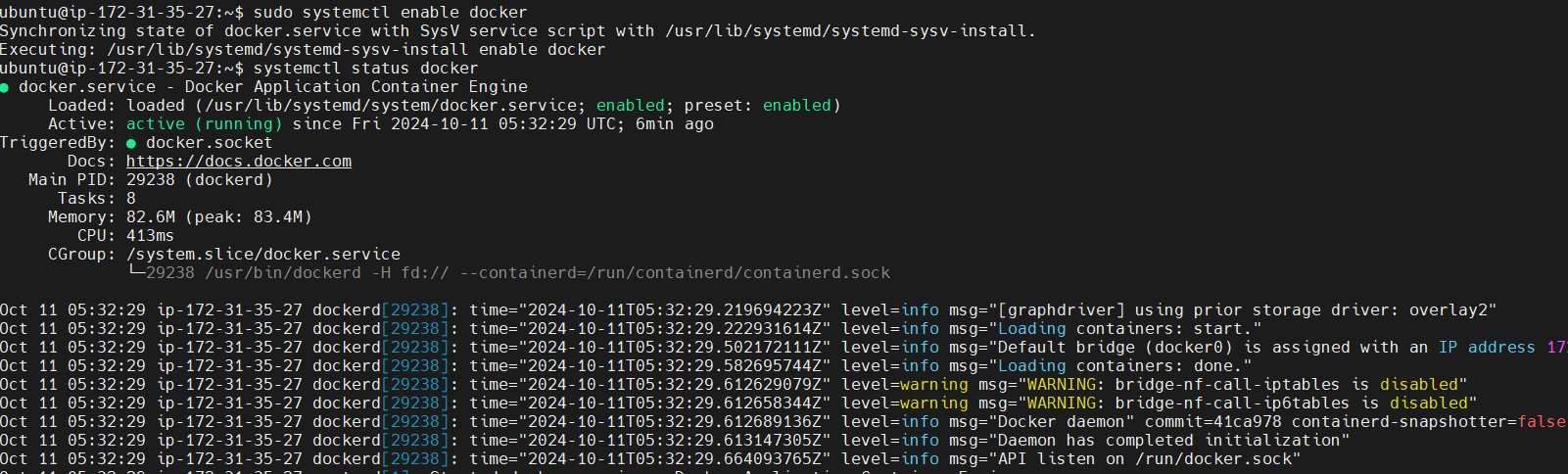
Disable Jenkins from starting on boot
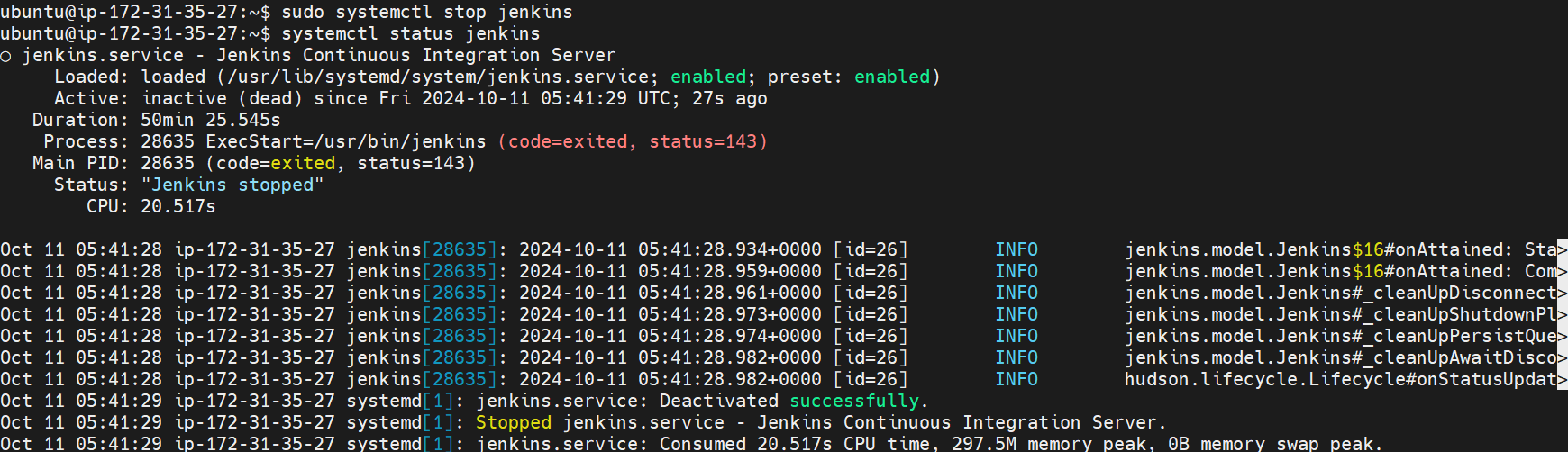
Analyze Logs:
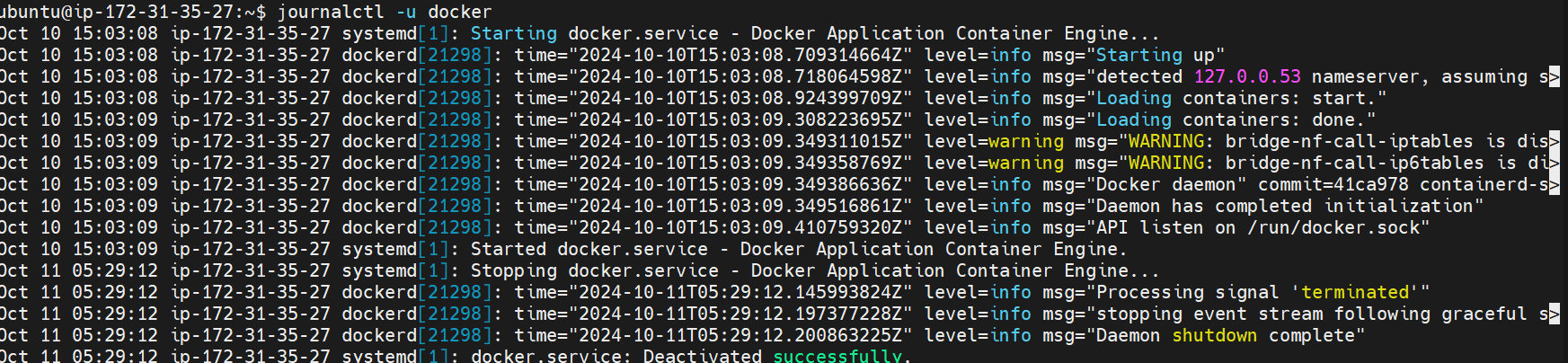
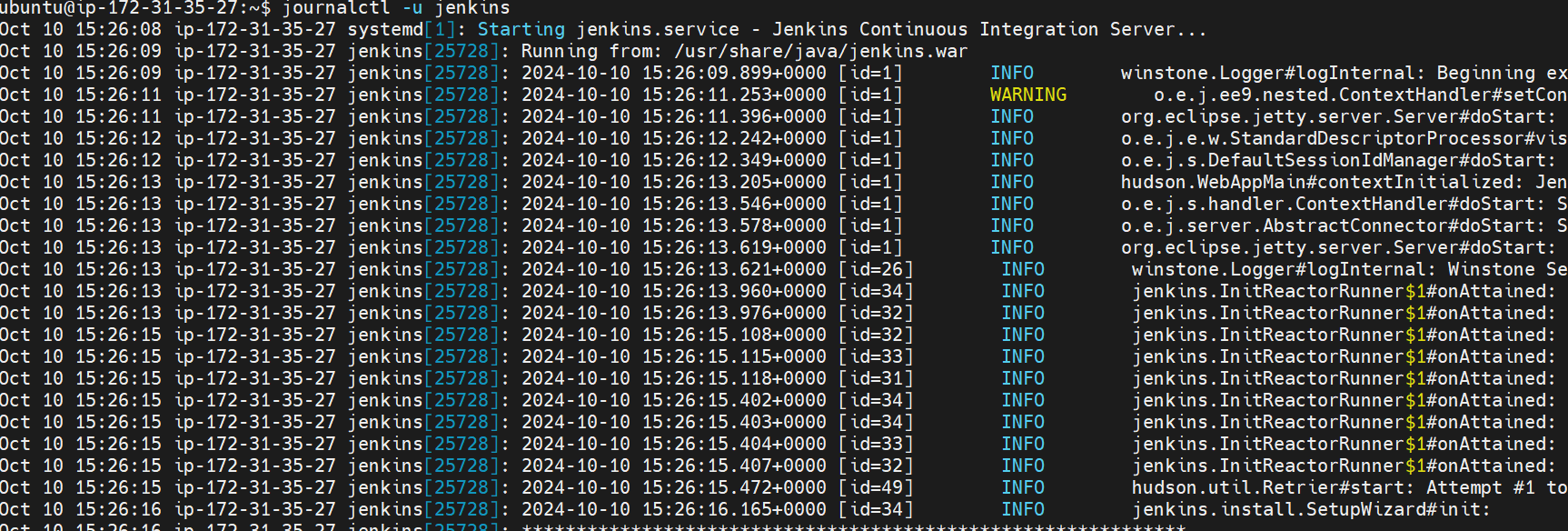
Use journalctl to analyze the logs of the Docker and Jenkins services. Post your findings.
Answer
Docker Logs:
Jenkins Logs:
Conclusion
Linux package managers and systemd (with systemctl) form the backbone of software and service management in modern Linux distributions. Package managers ensure that software installations are handled smoothly and consistently, managing dependencies and updates efficiently. Meanwhile, systemd and systemctl provide robust tools for controlling and managing system services, enhancing system reliability and maintainability. Understanding these tools is crucial for effective Linux system administration.
HAPPY LEARNING!

